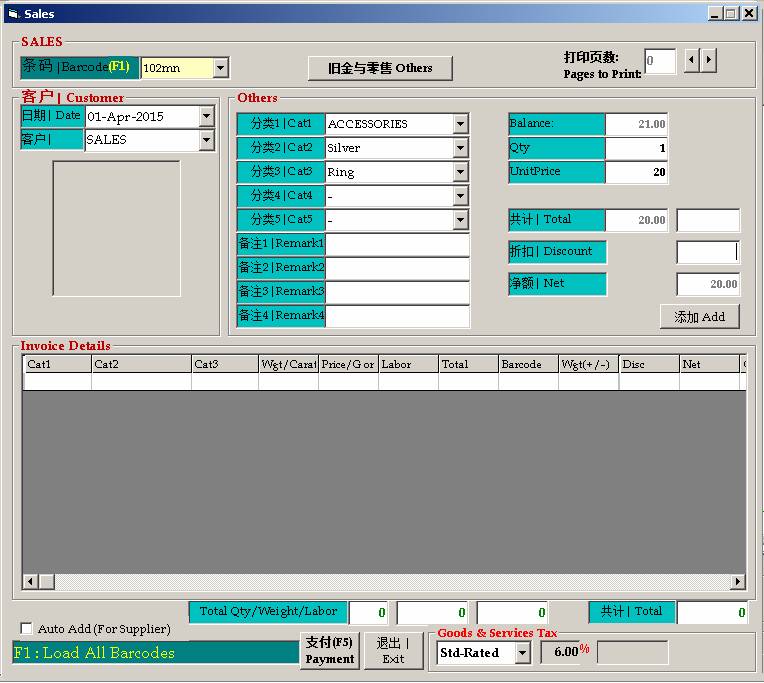
Barcode for OTHERS category
条码(OTHERS种类的货)
GJIS allows you to generate a barcode for OTHERS category now. At sales, just scan the barcode and enter the price.
At this stage, barcode does not have Case Price yet (Will be added in future upgrade)
系统可以让你给OTHERS种类的货制造条码,这样,在销售时,你可以扫描条码就可以了。
现阶段barcode是没有标价,下个版本才加这标价功能。
Accessories (Silver or Others) Item
Go to Inventory -- > Product Name
1. Select ACCESSORIES/OLDGOLD in Cat1
2. Enter “Free Gift” (or any name) in Cat2 and “Jewel Box” (or any name) in Cat3
3. Tick “Service Item” checkbox
4. Click “Create”
4 3 2 1



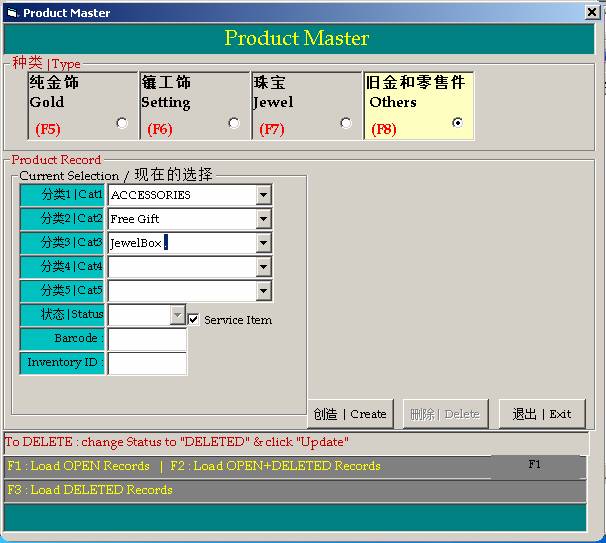
Steps:
5. Select the product name again.
6. Click Generate Barcode (Make sure barcode printer is turned on)
6
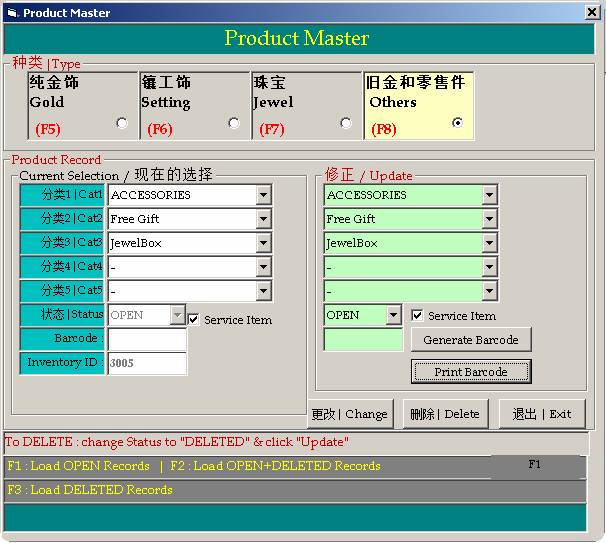
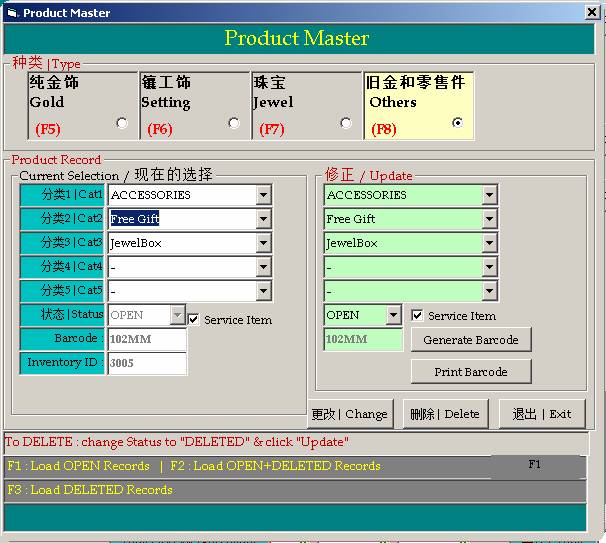
7. A barcode number will be assigned.
8. Click “Print Barcode”
9. Click “Change” button.
9 8 7

When performing sales, just scan the barcode instead of clicking “Others” and selecting sub-categories.
在销售时,你可以扫描条码就可以,打入价钱就可以了。不用再按Others和分类1-5了。
Scan the barcode here and stock will be auto selected.扫描条码,货件资料会自动出现在下面了。打入Unit Price就可以了。

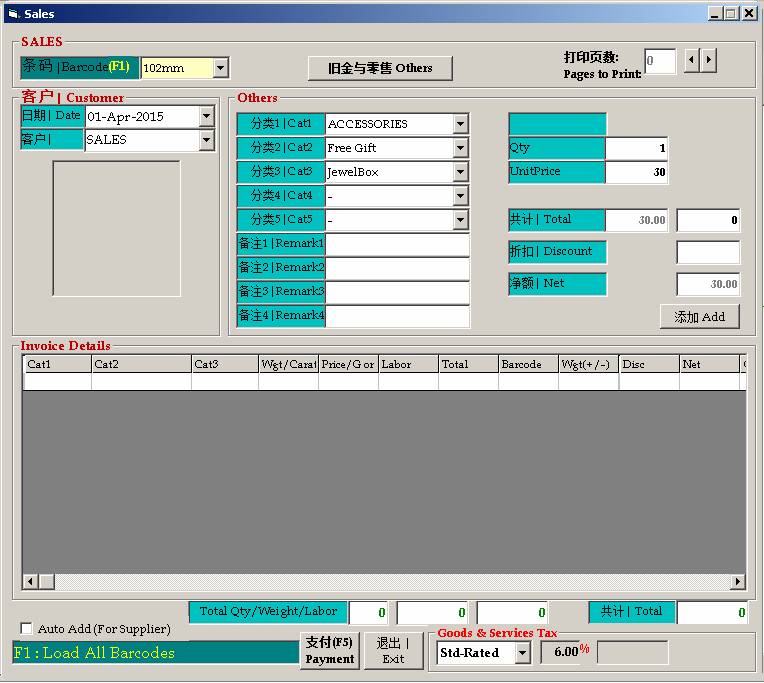
Steps for Accessories Item
(Silver or others).
Go to Inventory -- > Product Name
1. Select ACCESSORIES/OLDGOLD in Cat1
2. Enter “Silver” in Cat2 and “Ring” in Cat3
3. Click “Create”
3 2 1
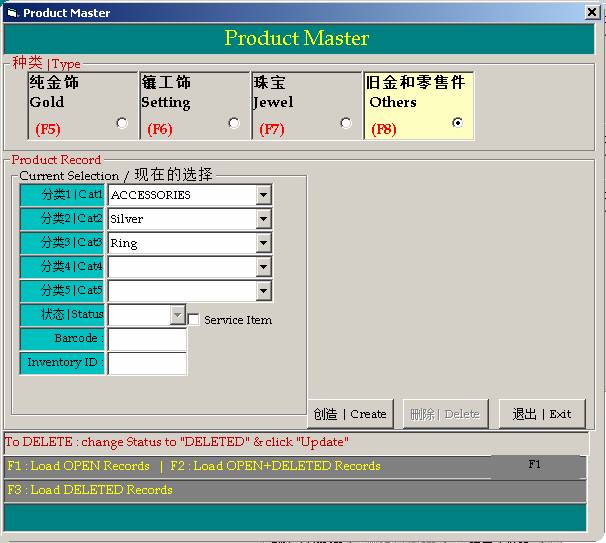
Steps:
4. Select the product name again.
5. Click Generate Barcode (Make sure barcode printer is turned on)
6. A barcode number will be assigned. 现阶段barcode是没有标价,下个版本才加这标价功能。
7. Click “Print Barcode”
8. Click “Change” button.
7 8 6 5


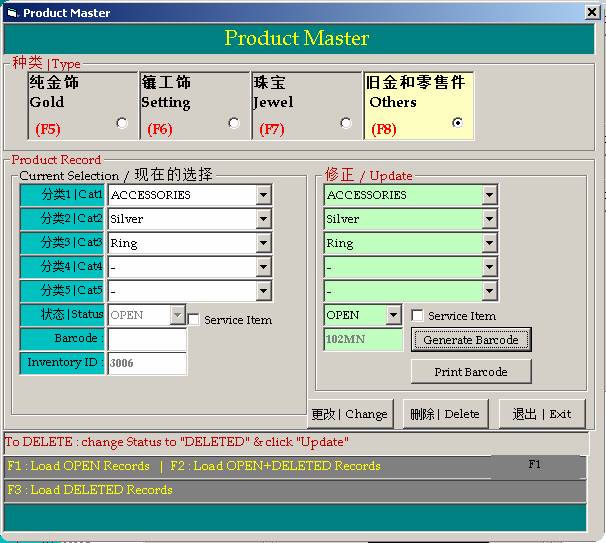
Go to BUY to enter a quantity.
去购买输入一定的数量就可以卖了。
When performing sales, just scan the barcode instead of clicking “Others” and selecting sub-categories.
在销售时,你可以扫描条码就可以,打入价钱就可以了。不用再按Others和分类1-5了。
Scan the barcode here and stock will be auto selected.扫描条码,货件资料会自动出现在下面了。打入Unit Price就可以了。