Argox CP-2140 Barcode Printer Emulation
In order to use this barcode printer, PPLA emulation must be installed as follows:
1. Install CP-2140 driver as per normal (Windows will install PPLB driver)
2. Download "PrinterUtility" and double click the downloaded file.
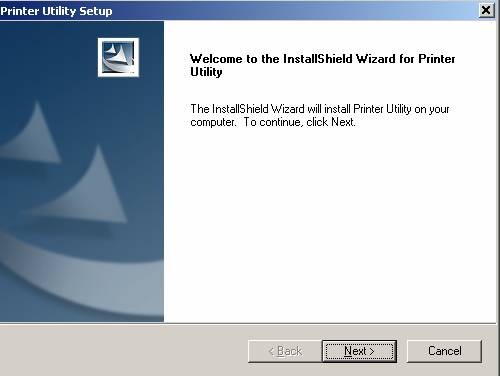
3. Click "Next"

4. Click "Next" again.
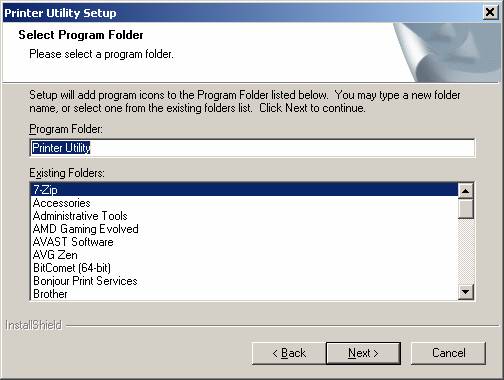
5. Click "Next" to accept "Printer Utility"
6. After finished, you should find the following icon "Printer Utility" on your desktop
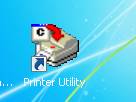
7. With barcode printer connected and switched on, double-click this "Printer Utility"
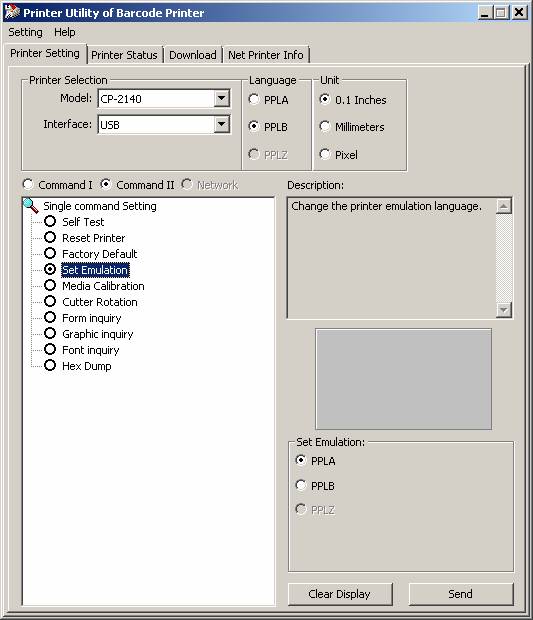
8. Do the followings:
A. Select "CP-2140" in the Model combobox.
B. Ensure Language is "PPLB"
C. Check "Command II"
D. Click "Set Emulation"
E. Check "PPLA" under "Set Emulation" frame on the right.
F. Click "Send" to complete the setting.
9. Windows should auto install the Argox CP-2140 PPLA driver if the commands above is successful.