Windows 10 Update - Chinese Font
Steps to resolve chinese fonts after windows 10 update.
Step 1: Right-Click "Start" button and
following menu will be disaplyed.
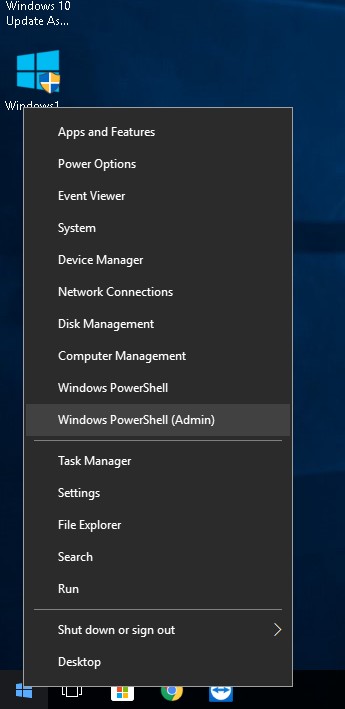
Step 2: Click on "Windows PowerShell(Admin)
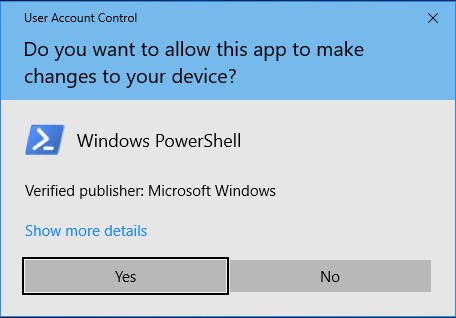
and following dialop may appear. Click on
"Yes"
Step 3: Powershell
will appear. Type "intl.cpl" and press
ENTER.

Step 4: Region menu will appear
as follow. Click "Administrative" on top

Step 5 :
Click on "Change system locale..."

Step 6 :
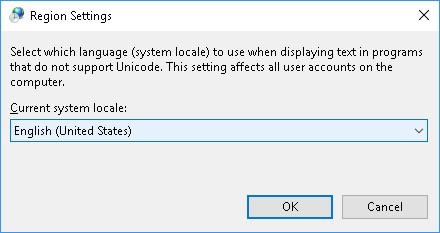
Select "English (United States)
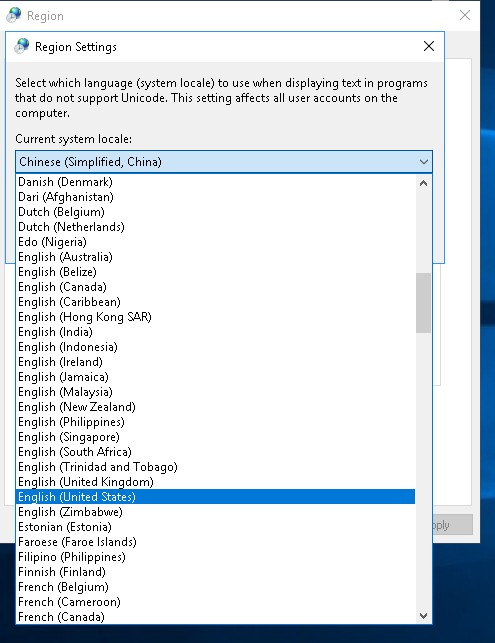
Step 7: Current System locale
will show "English (
Click "OK". A "Change System Locale" box will
appear. Click "Cancel"

Step 8 :
After clicking "Cancel", you will be brought back to following
screen.
Click "Change system
locale" again.
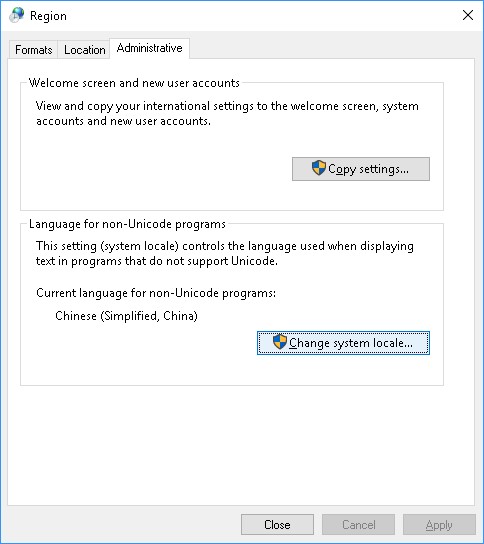
Step 9 :
This time, you will see "English (
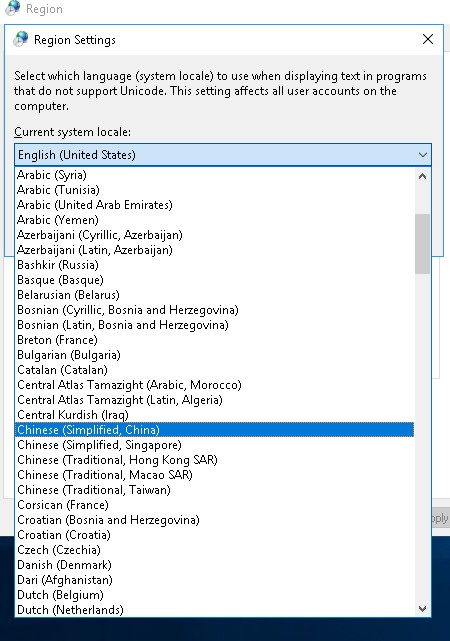
Step 10 :
Click "OK" and restart your PC.